Product Review in the Customer Account – Voucher
With the plugin Product Review in the Customer Account – Voucher, your customers rate purchased products directly in their customer account under “Orders”. As soon as you approve a review, the customer automatically receives a personal voucher code by email – as a thank-you and an incentive for the next purchase.
The voucher is based on a Shopware promotion with individual promotion codes. Value, conditions and validity are set in the promotion as usual.
Highlights
- ⭐ “Rate now” button on every order item not rated yet
- 🎁 Automatic voucher code once the review is approved
- 💶 Voucher value from a Shopware promotion with individual codes
- 📋 Overview of all voucher codes – redeemed, sent, resend
- 📦 Reviews only from a given order and delivery status
- 🔐 Dedicated roles & permissions (ACL)
- 💬 Info box above the orders and a review prompt on every product (from 7.1.1)
- 🏷️ Voucher value from the promotion right in the text, e.g. “10 % off” (from 7.1.1)
❓ FAQ
Where does the voucher value in the info box come from?
From the configured promotion: a percentage discount shows as “10 % off”, a fixed amount as “a €5.00 voucher” in the customer’s currency, other discount types as “a voucher”. If the promotion is inactive, expired, not valid yet or not assigned to the sales channel, the texts appear without a voucher promise.
When does the customer receive the voucher?
As soon as you approve the review under Catalogues > Reviews. The plugin then creates a personal single-use code from the configured promotion and sends it by email.
Can I set the voucher value myself?
Yes. The value comes from the promotion – as a percentage or fixed discount, with all conditions and validity periods Shopware promotions offer.
Which orders can be reviewed?
Orders from the last x days whose order status and delivery status match the settings. Excluded customer groups do not see the button. Each product can be reviewed once per customer.
Can I resend a voucher?
Yes. In the Reviews with promotion codes overview via “Resend code” – as long as the code has not been redeemed.
Is another plugin required?
No. From version 7.0.0 / 6.0.0 / 5.0.0 on, the Web Loupe Foundation plugin is no longer required.
🔧 Installation
- Buy or test the plugin in the Shopware Store
- Install and activate it under Extensions > My extensions
- Create a promotion (see Create the promotion)
- Configure the plugin via “Configure” (see Settings)
🎟️ Create the promotion
Create a new promotion under Marketing > Discounts & promotions, e.g. “Thank you for your review”.
1. General settings – set name, validity and usage, and activate the promotion. Assign the sales channels under Conditions.

2. Promotion codes – choose “Individual promotion codes” as the code type. The plugin creates one code per approved review; this list later shows which codes were redeemed.

Individual codes are required
A fixed promotion code cannot be used for personal vouchers. When a review is approved, the administration then shows a notice.
3. Discounts – add the voucher value, e.g. 10 % on the cart.

⚙️ Settings
The settings are under Extensions > My extensions > Product Review in the customer account – Voucher > Configure. Choose the sales channel at the top; without a choice the values apply to all sales channels.
General settings
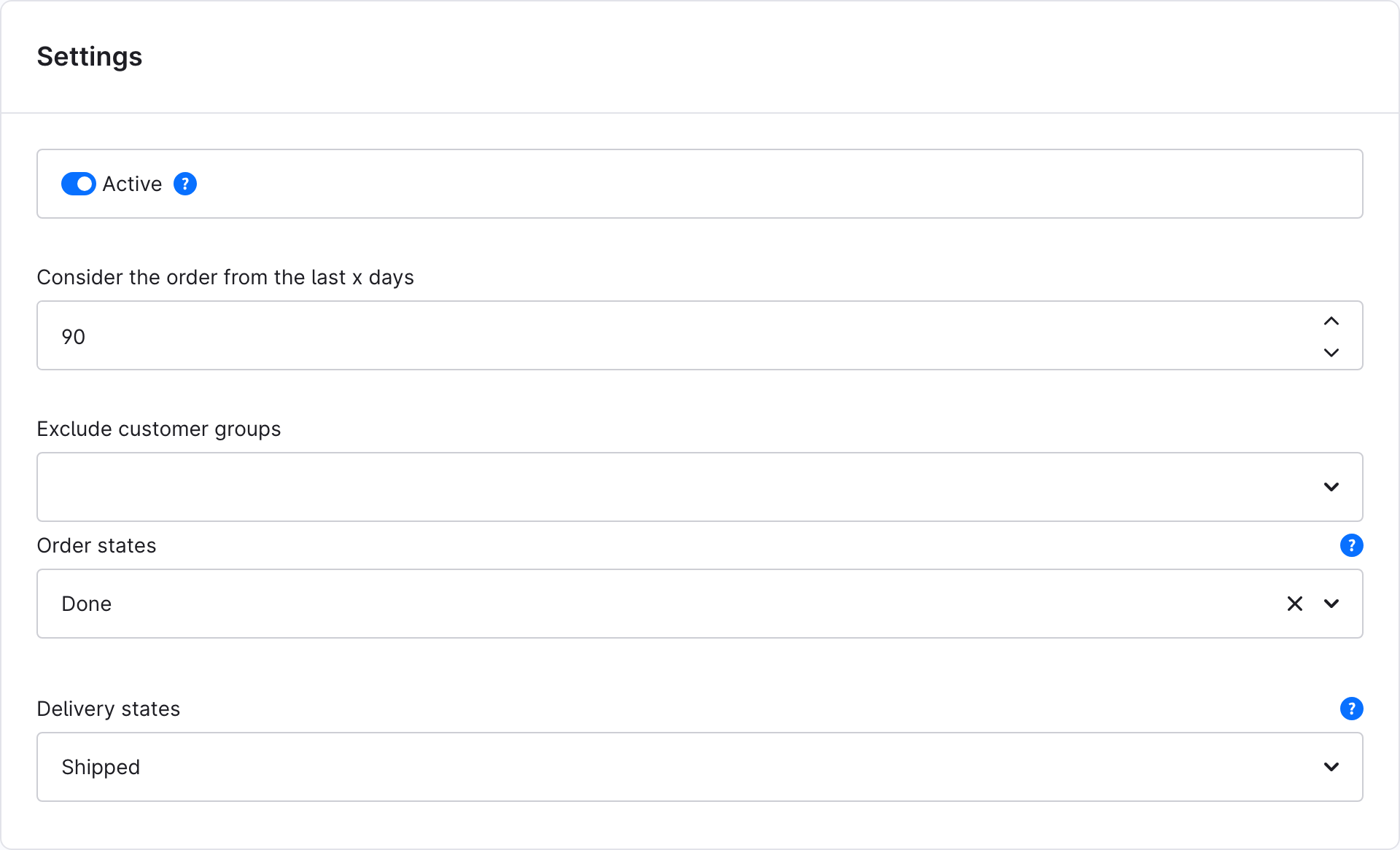
| Setting | Description |
|---|---|
| Active | Switches reviews in the customer account on or off for the sales channel. |
| Consider the order from the last x days | Only orders from this period show the button (0 = no limit). |
| Exclude customer groups | Customers of these groups do not see the button. |
| Order states | Reviews are possible from this order status on, e.g. Done. Empty = no restriction. |
| Delivery states | Reviews are possible from this delivery status on, e.g. Shipped. Empty = no restriction. |
Voucher configuration

| Setting | Description |
|---|---|
| Promotion for the review codes | The promotion with individual promotion codes created under Create the promotion. |
| Individual code-pattern | Pattern of the generated codes, e.g. REVIEW-%s%s%s%s%s (%s = letter, %d = digit). |
Presentation in the customer account

| Setting | Description |
|---|---|
| Show the intro box above the orders | Shows a box above the order list with the voucher promise, three steps and the number of products still to review. Once everything is reviewed, a short thank-you appears instead. |
| Mention the voucher (value from the promotion) | Names the voucher value in the info box, the review prompt and the modal. Off = texts without voucher. |
| Own text for the intro box (optional) | Replaces the default text of the box; %reward% is replaced by the voucher value. Empty = default text. |
📧 How it works
From version 7.1.1, the customer account shows an info box above the orders: it names the voucher value, explains the three steps and counts the products still waiting for a review.

On a smartphone
Below 576 px width, the box and the review prompt stack – without horizontal scrolling.

-
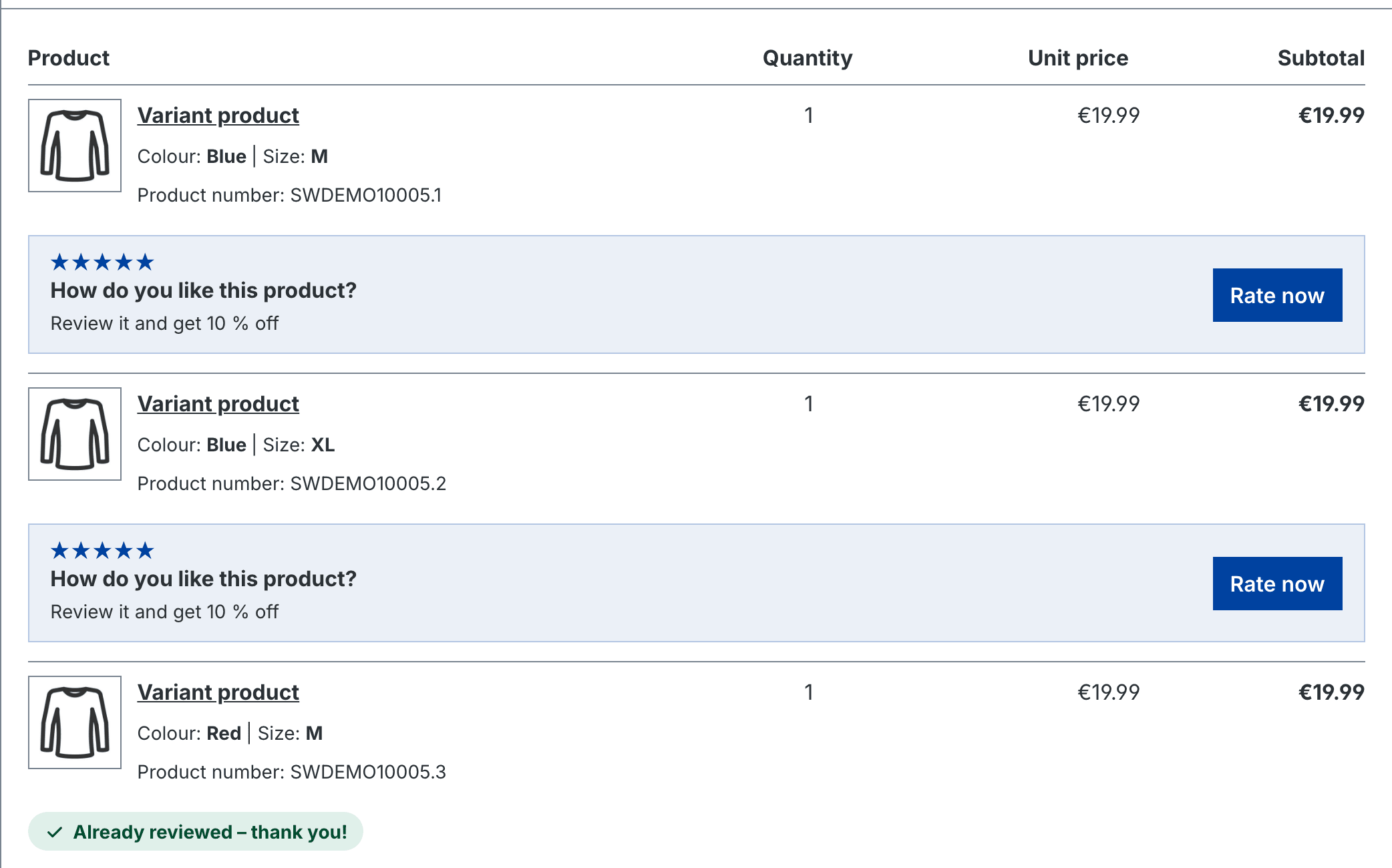
In the customer account under Orders, every product not rated yet shows the “Rate now” button – once the settings are met. Below the product, a review prompt shows the voucher value; reviewed products show “Already reviewed – thank you!”.
-
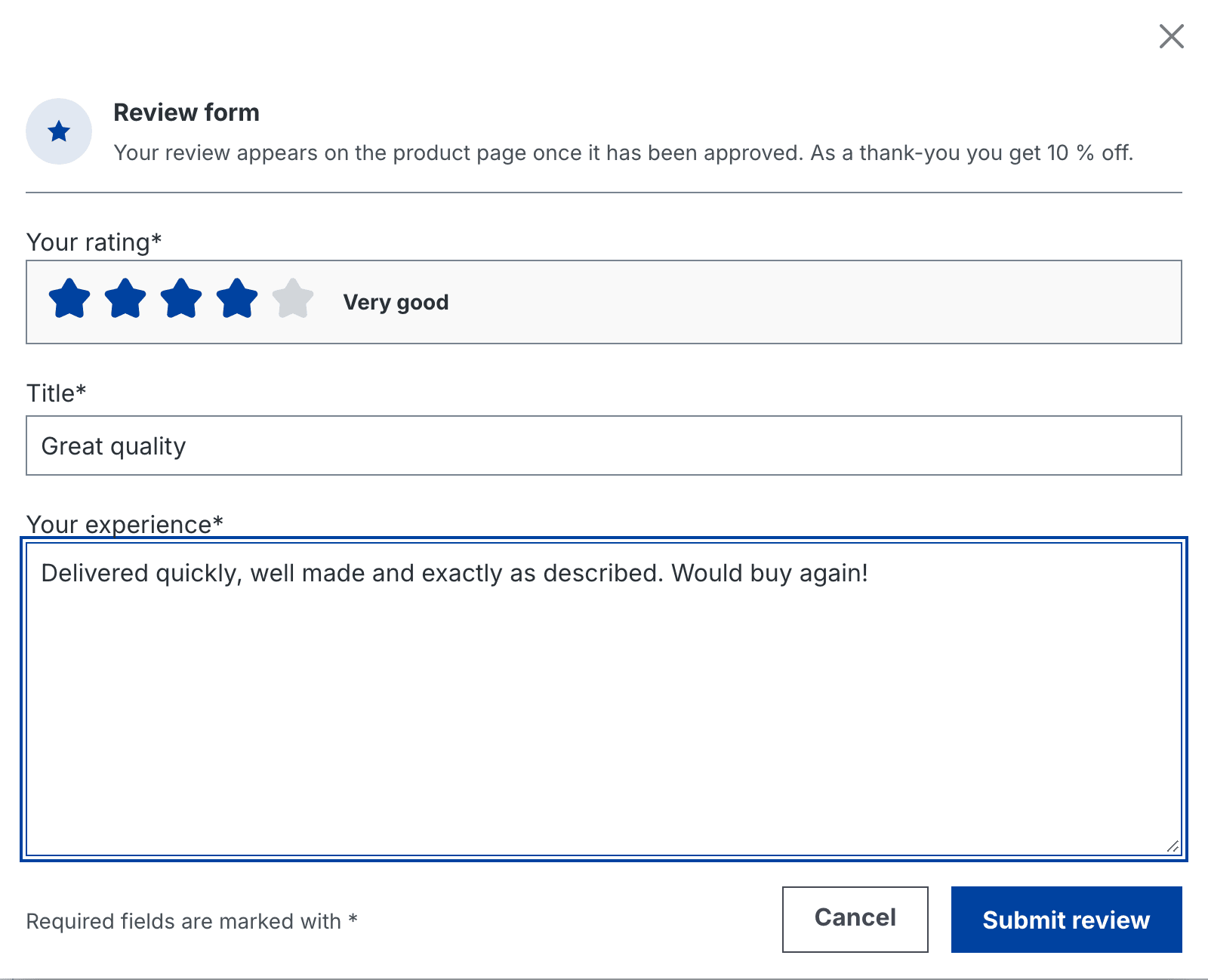
The customer enters stars, title and text in a modal.
-
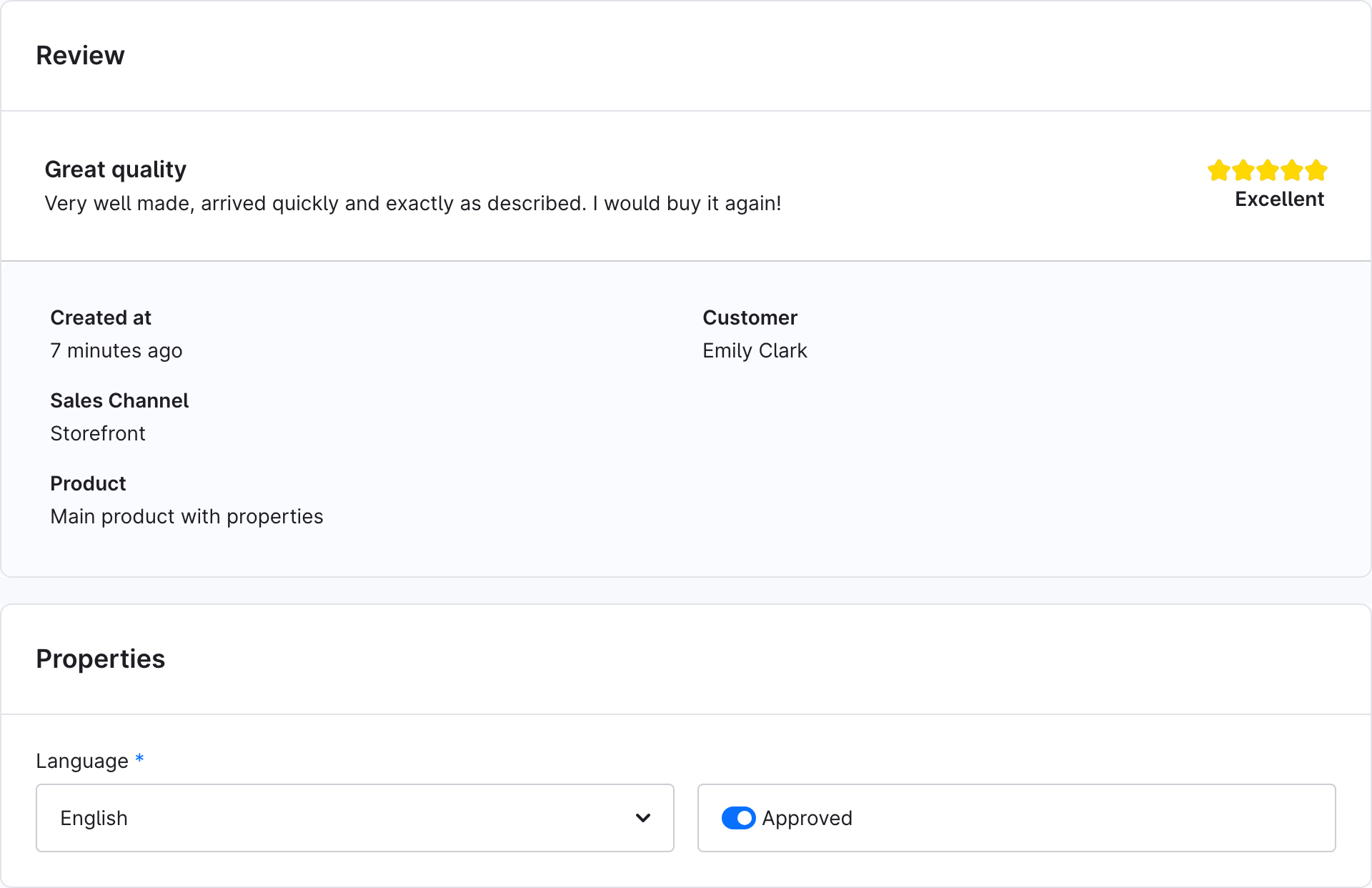
You check the review under Catalogues > Reviews, switch on “Approved” and save.
-
The plugin creates a voucher code and emails it to the customer. The email is the template of type “ReviewMailTemplate” under Settings > Email templates (German and English) and can be adjusted there.

📋 Reviews with promotion codes
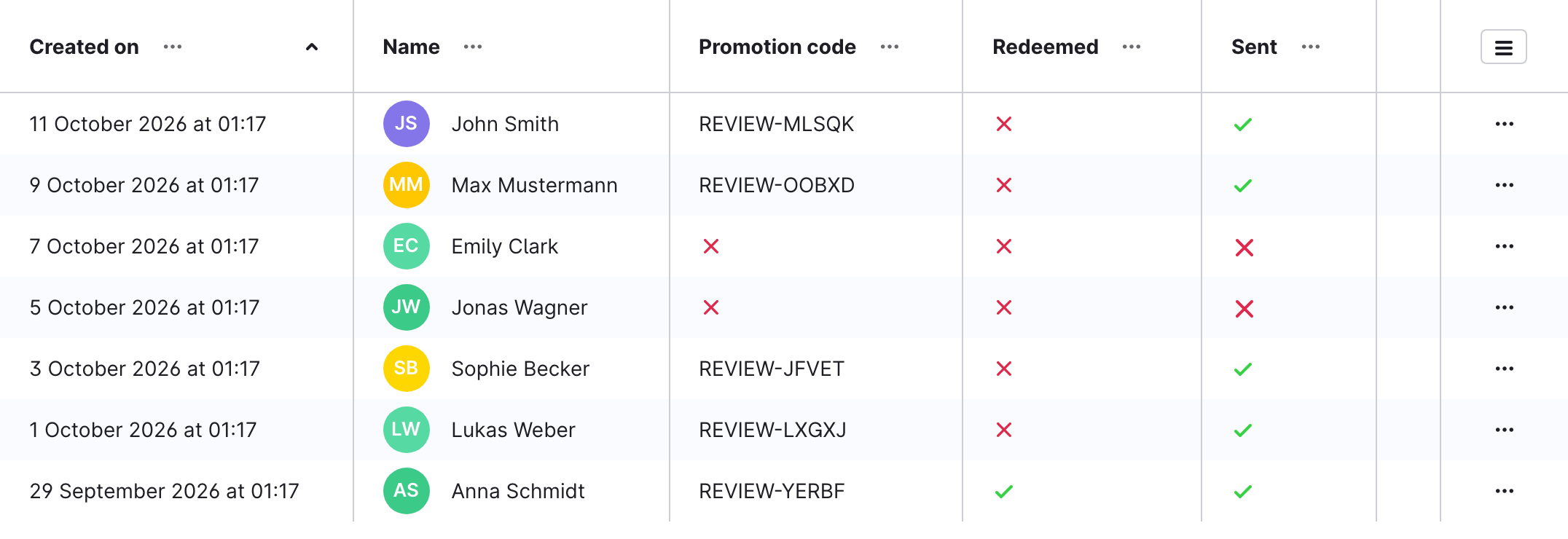
Under Catalogues > Reviews > Customer account you see all reviews from the customer account with customer, voucher code, redemption and sending status. The menu of a row opens the review or resends the code.
🔐 Permissions (ACL)
Under Settings > Users & permissions > Roles you find the entry “Customer account reviews”:
| Role | Permissions |
|---|---|
| Viewer | Open the overview of reviews with promotion codes. |
| Editor | Additionally (re)send vouchers and create codes. Includes Viewer. |
To approve a review, the user also needs the Shopware permissions for Reviews (Catalogues). The plugin configuration is available to users with the permission to manage extensions.
🎨 Customising in the theme
The styling only uses Bootstrap and Shopware variables, so it adapts to your theme. Twig blocks and CSS classes are available for your own changes:
| Area | Twig block | CSS class |
|---|---|---|
| Info box | welo_review_user_account_intro (…_intro_icon, …_intro_content) | .welo-review-intro |
| Thank-you (all reviewed) | welo_review_user_account_thanks | .welo-review-thanks |
| Review prompt | welo_review_user_account_cta (…_cta_text, …_cta_button) | .welo-review-cta |
| “Already reviewed” | welo_review_user_account_done | .welo-review-done |
| Modal header | welo_review_user_account_modal_head (…_modal_form) | .welo-review-modal__head |
All texts are snippets under weloReviewUserAccount.promo.* and can be changed under Settings > Snippets.
🧩 Compatibility
| Shopware | Plugin version |
|---|---|
| 6.7 | 7.x |
| 6.6 | 6.x |
| 6.5 | 5.x |
The info box, review prompt and voucher hint are available from version 7.1.1 (Shopware 6.7).
💡 Typical use cases
Collect more authentic reviews
A voucher motivates customers to rate the products they bought – for more trust and better conversion.
Strengthen customer loyalty
The voucher is a concrete incentive for the next order.
Reviews only after delivery
With order and delivery status you make sure that only customers who received the product can review it.
📬 Support
For questions or customisation requests, contact us by email at support@cnk-plugins.de.